
Creating address labels for mailings, whether for a large e-commerce business or routine office correspondence, can often feel like a tedious task. However, with the right approach, the process can be streamlined for maximum efficiency.
The most effective method involves utilizing a mail merge function, such as the one integrated into Microsoft Word. This separates your address data from the document itself, storing it in a spreadsheet or database. Your document then contains a designated ‘field’ that dynamically pulls the correct address from your data source.
Once your addresses are properly organized, generating the labels becomes straightforward. Simply create a new document and insert multiple address fields, using a ‘next record’ field to ensure each label receives a unique address. Word’s built-in wizard simplifies this process: Navigate to File > New, and select ‘Mailing Label Wizard’ under ‘Letters and Faxes’. Connect the wizard to your address database, and follow the prompts.
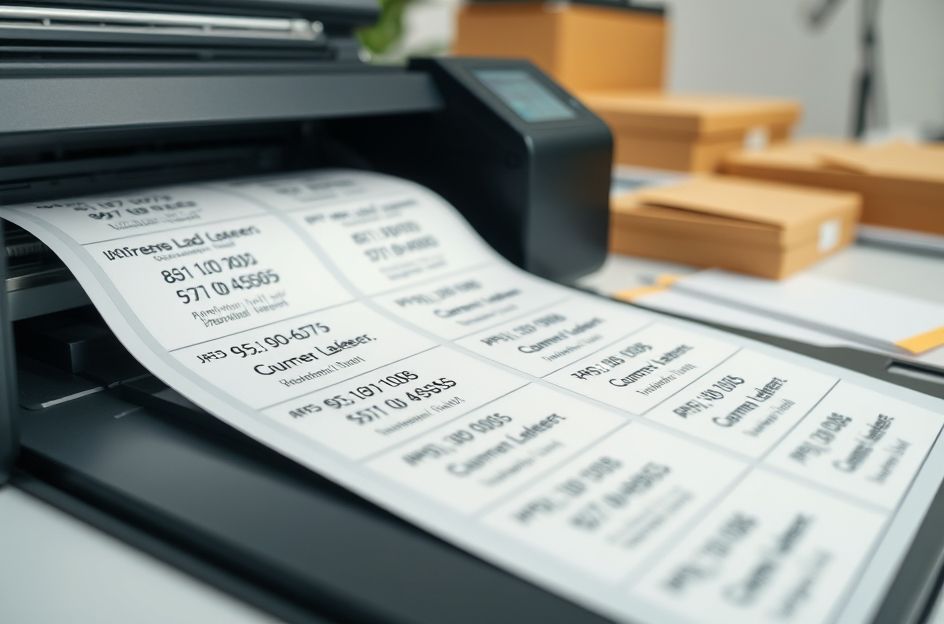
The final step is the physical printing of the labels. While software handles the data aspect, you’ll need adhesive label sheets compatible with your printer. These are readily available at office supply and stationery stores. Ensure the label size matches the options available in Word to guarantee proper layout. You can verify compatible sizes during the final stage of the Mailing Label Wizard. Most major label manufacturers design their products to be compatible with Word, minimizing compatibility issues.